
Installation of template and demo data
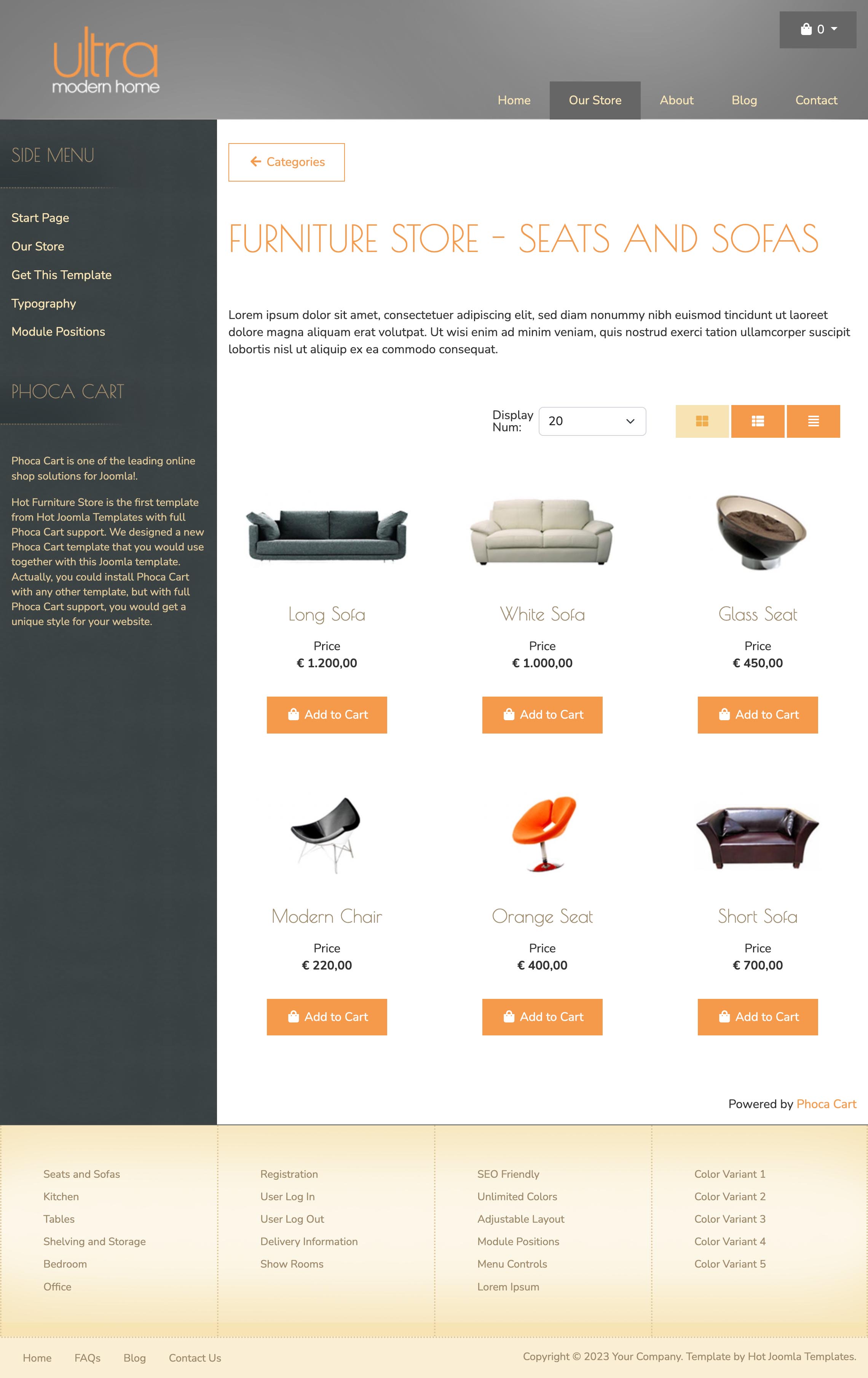
Once you finish this installation method, you should get exactly the same copy of this Demo site on your server. Let's start!
- Unzip file "hot_furniture_storeXX_hotstart.zip" from the archive you downloaded after purchase. Unzip this archive to your computer.
- Using FTP software (such as FileZilla) upload all files and folders to your hosting space. Make sure that folder, where you uploaded files, is writable by server (chmod 755).
- In browser, open address http://www.your_site_address.com/joomla/index.php (change "your_site_address.com" with your site address, change "joomla" with folder name where you uploaded files, if you uploaded files to the root folder, you don't need this).
- Select English language. Enter your site name, your email, Joomla administrator's username and password. Click NEXT to continue.
- You should enter MySQL database connection parameters now. Please enter Host Name (usually "localhost"), username, password, and database name and click Next. If you get an error message, please check database parameters. If you don't know correct parameters, please contact your hosting provider.
- On the next screen, you can select what sample data pack to install. Make sure you selected option SELECT THIS FOR HOTSTART. Otherwise, demo data that comes with our template will not be installed. The installer checks your server to find out if it's compatible with Joomla. If all items are green, you can click NEXT. Even if some items are marked red in the bottom part (under Pre-installation Check and Recommended Settings), you can continue, but problems after installation are possible in this case. If you see any parts marked red, please contact your hosting provider to resolve the problem.
- As the Finish screen says, please remove "installation" folder from your server (use FTP software) and you will be ready to start using your new Joomla installation with our template and demo data.